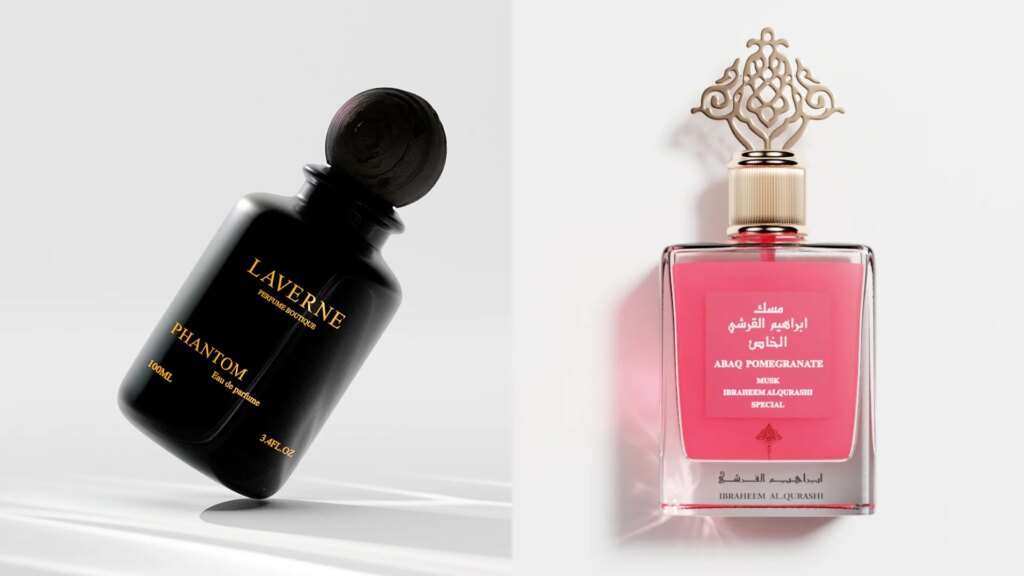
Ever felt like your product photos look a little off? Like your e-commerce visuals are almost perfect but something about the colors doesn’t sing in harmony?
That’s where Adobe Color Wheel comes in. It’s like having a cheat sheet for perfect color combinations, saving you hours of guesswork and endless tweaking. Today, we’ll break down everything you need to know to master this tool, from the basics of color theory to the secrets of selecting winning palettes that make your products pop off the page.
What is Adobe Color Wheel and why does it matter in e-commerce?

Adobe Color Wheel is an online tool within the Adobe Creative Cloud suite that lets you explore, create, and save color combinations. Think of it as your digital artist’s palette, but smarter. It uses algorithms and color theory rules to help you build palettes that don’t just look pretty but communicate the right message.
For example, say you’re shooting jewelry for your Etsy shop. Using complementary colors can make gold pieces shine even brighter. Or if you’re designing a new banner for your Shopify store, an analogous palette creates a soothing, cohesive feel that invites shoppers in. Even large brands like Coca-Cola use strict color harmony to maintain brand identity, and Adobe Color Wheel makes it accessible for solo creators like you.
One of its biggest perks is speed. Instead of spending hours testing what looks good, you can select a color harmony rule, choose your base color, and watch it generate multiple palette options instantly. And because it’s synced to Adobe Creative Cloud, you can import palettes directly into Photoshop, Illustrator, or any design software you’re using.
In short: it makes sure your e-commerce visuals look intentional, polished, and on-brand, whether you’re creating social media ads, website banners, or product packaging mockups.


The basics of color theory

Understanding how Adobe Color Wheel works means understanding the basics of color theory. Let’s break it down in simple terms.
Colors are like people. Some get along beautifully, others clash, and some bring out the best in each other in unexpected ways.
First, there are primary colors: red, blue, and yellow. Mix any two of them and you get secondary colors: green, orange, and purple. Then, mix a primary with a secondary and you get tertiary colors, like red-orange or blue-green.
Another key concept is hue, saturation, and brightness. Hue is the pure color itself (like “red” or “blue”), saturation is how intense or muted it is, and brightness is how light or dark it appears. Adjusting these creates endless variations and moods.
Then there’s color harmony. This is the secret sauce that Adobe Color Wheel specializes in: creating combinations that feel naturally balanced to the human eye, making your visuals pop without ever feeling forced or chaotic. Here are the main types of color harmony you’ll use in your design work.
Complementary
Complementary color schemes use two colors that sit directly opposite each other on the color wheel, such as blue and orange or red and green. These combinations create strong visual contrast, instantly drawing attention to key elements in your design.
For example, if you’re designing an ad for a bright orange handbag, placing it against a rich blue background will make the product stand out with an almost electric vibrancy. This approach is perfect for call-to-action banners, sale announcements, or any e-commerce visuals where you want immediate impact.
However, because complementary colors are so high-contrast, it’s best to use one as the dominant color and the other as an accent to avoid overwhelming your viewer.
Analogous
Analogous color schemes use colors that sit next to each other on the color wheel, like blue, blue-green, and green. These palettes create a sense of natural harmony and flow, as the hues are closely related.
In your product photos or lifestyle visuals, using analogous colors creates a soothing, cohesive look that feels effortless and pleasing to the eye. For instance, a skincare brand might choose different shades of green to evoke freshness, calm, and a connection to nature. Because there’s little contrast between analogous colors, these schemes are ideal for building brand identities that want to appear reliable, peaceful, and grounded.
Triadic
Triadic color schemes use three colors that are evenly spaced around the color wheel, such as red, yellow, and blue. This combination creates a sense of vibrant balance, allowing you to incorporate multiple hues without clashing.
Triadic palettes are often used by brands that want to appear youthful, energetic, and confident because they provide visual interest while maintaining harmony. For example, a children’s toy brand might use red, blue, and yellow to create playful and dynamic packaging that attracts both kids and parents.
The key to triadic color schemes is to let one color dominate while the other two serve as supporting accents, keeping your design balanced and professional.
Monochromatic
Monochromatic color schemes use variations of a single hue, adjusting brightness and saturation to create different shades, tints, and tones. This approach produces a clean, elegant, and unified feel that’s perfect for sophisticated branding.
For example, a luxury jewelry brand might use warm gold tones, deep browns, and soft beiges in their product photos to evoke opulence and timelessness without introducing distracting contrasting colors. Monochromatic palettes are especially useful when you want your products to speak for themselves, keeping the focus clear and the mood cohesive across your e-commerce visuals.
These are the foundations you’ll use to build palettes in the Adobe Color Wheel and create visuals that grab attention while feeling effortless.
How to use Adobe Color Wheel effectively

Let’s dive into how to actually use this tool to create winning palettes for your brand.
Selecting a color harmony rule
When you first open the Adobe Color Wheel online, you’ll see a color wheel with adjustable nodes. On the left sidebar, you can select which harmony rule to use: analogous, monochromatic, triad, complementary, split complementary, double split complementary, or square.
Each rule rearranges the nodes automatically. For example, if you select complementary, the tool places two nodes opposite each other. If you choose triad, it spreads three nodes evenly around the wheel. This ensures your palette follows the mathematical harmony that’s pleasing to the eye.
Choosing the right harmony rule depends on your goal. Need a strong contrast for a call-to-action button? Go complementary. Want a harmonious look for your lifestyle photos? Analogous is your friend.
Choosing a base color
Once you’ve picked your harmony rule, it’s time to select a base color. You can do this in two ways: either manually drag one of the nodes on the wheel until you find a hue you love, or enter the exact hex code of your brand color.
When you move your base color, the other nodes automatically adjust based on the harmony rule you selected. This saves you from manually figuring out each color relationship — Adobe Color Wheel does the heavy lifting.
Adjusting shades, tints, and tones
At the bottom of the tool, you’ll see sliders to adjust brightness and saturation. This is where you refine your palette to match your brand’s aesthetic.
For example, you might want a bright, highly saturated palette for playful brands like children’s toys, or a muted, desaturated palette for luxury products like skincare or jewelry.
You can also use the “Custom” option to unlock each node, adjusting them individually. This gives you ultimate control if you’re creating a more experimental or nuanced color scheme.
Saving and exporting your palette
Once you’re happy with your palette, you can save it directly to your Adobe Creative Cloud library by clicking “Save” at the top right. This means you can instantly access it in Photoshop, Illustrator, or any other Adobe app you’re using for your e-commerce visuals.
You can also copy the hex codes individually if you’re working in other platforms like Canva or Shopify, ensuring brand consistency everywhere.
Using the explore and trends features
One overlooked feature of Adobe Color Wheel is the “Explore” tab. Here, you can browse thousands of palettes created by other users, organized by tags like “pastel,” “earthy,” or “neon.” This is a goldmine when you’re feeling stuck and need fresh inspiration.
The “Trends” tab shows color palettes currently popular in different industries like fashion, graphic design, or illustration. This is especially useful for e-commerce sellers wanting to stay ahead of seasonal trends and market aesthetics.
Why CGI is your secret weapon for color mastery

True-to-life color accuracy
Here’s the real talk. Even if you master Adobe Color Wheel, adjust every node, and create beautiful palettes, implementing them flawlessly in your e-commerce visuals still takes time, expertise, and careful color calibration. That’s because real-life lighting conditions, camera limitations, and post-production edits can all distort your carefully chosen hues.
When you work with CGI product rendering specialists, they use advanced software to replicate exact Pantone colors under any lighting scenario. This means your products will look as real and true-to-life as possible. In other words, no more disappointing customers with inaccurate colors when they finally unbox their orders.
Pixel-perfect branding
CGI professionals don’t just place your product in a pretty scene. They manage every pixel of color to ensure it conveys the right emotion, follows your brand palette, and looks consistent across screens and platforms.
Whether your products need to match your website’s CTA banners, your seasonal email campaigns, or your printed packaging designs, CGI ensures absolute color consistency. That’s branding gold right there: it builds trust with customers who come to expect that your brand looks intentional and cohesive at every touchpoint.
Unlimited creative possibilities
Another powerful advantage of CGI is flexibility. It lets you create unlimited lifestyle scenes with different color schemes in minutes instead of hours. There’s no need for physical backdrops, props, or expensive studio setups. Want to test your product in a rustic kitchen scene, a minimalist marble setup, or a dreamy pastel room? CGI makes it happen instantly, empowering you to explore new aesthetics and seasonal campaigns without logistical nightmares.
Saves (a lot of) time and money
Finally, CGI saves you money and speeds up your launch timelines. Without the costs of multiple photoshoots, studio rentals, and prop sourcing, you free up your budget for marketing and growth. Plus, with visuals ready in days rather than weeks, you can launch seasonal collections, A/B test ads, and update your product pages at the pace modern e-commerce demands.
So while mastering Adobe Color Wheel is an incredible tool for your arsenal, partnering with a professional CGI studio will elevate your brand visuals to the next level, with less hassle and better results every single time.
Wrapping up


Colors are powerful. They can make your customers feel calm, excited, curious, or confident in a single glance. The Adobe Color Wheel gives you a practical, science-backed way to choose palettes that work, helping you streamline your design process and elevate your brand aesthetics effortlessly.
But if you’re ready to go beyond, remember: working with CGI professionals combines the power of color theory with technical expertise to create visuals that sell. Get in touch with our team today — we’ll talk you through the process.
FAQ
What is Adobe Color Wheel used for?
Adobe Color Wheel helps designers create harmonious color palettes for branding, product photos, and digital designs by using color theory rules and mathematical harmony.
Is Adobe Color Wheel free?
Yes, the online Adobe Color Wheel tool is free to use, though saving palettes directly to Creative Cloud requires an Adobe account.
How do I export colors from Adobe Color Wheel to Photoshop?
You can save your palette to your Creative Cloud library and access it instantly in Photoshop, or copy hex codes manually and paste them into your color picker.
What’s the difference between complementary and analogous color schemes?
Complementary colors are opposite on the wheel and create strong contrast, while analogous colors sit next to each other and create a harmonious, blended feel.
Do I still need CGI if I master Adobe Color Wheel?
Yes — mastering the Color Wheel helps you choose colors, but CGI professionals implement them seamlessly in your product renders and lifestyle scenes, saving you time and ensuring perfect visual branding.