If you’ve ever zoomed into a photo and been greeted by a blurry mess of colored squares, congrats — you’ve just met a low-res image up close and personal. On the flip side, maybe you’ve downloaded a crisp, studio-perfect product photo that looked stunning on your desktop and printed like a dream. That right there is the magic of high-res.
In the world of digital media and e-commerce, resolution becomes a make-or-break deal for your visuals. From pixel counts to DPI, the image quality you choose impacts how professional you look, how fast your website loads, and even how Google ranks you. So let’s break down the real difference between high-res and low-res, why it matters, and how you can make the smartest call for your brand.
What is resolution and why does it matter?

Resolution refers to the amount of detail an image holds. High resolution means more detail. Low resolution? Less detail. That’s it.
The resolution of an image is measured in dots per inch (DPI) or pixels per inch (PPI). For most digital screens, 72 DPI is standard. For print, you’re normally aiming for a clean 300 DPI. The bigger your image in terms of DPI and dimensions, the better it’ll look — but also the heavier it’ll be in file size.
Print needs high-res
Printed materials like brochures, product packaging, and magazine spreads demand clarity. A 300 DPI image ensures that no matter how closely you look, the text and visuals are sharp. If you print a low-res image, you’ll get pixelation — those jagged edges that make your brand look unprofessional.
In short: printing a 72 DPI image is like trying to paint a billboard with a crayon. It just won’t hold up.
Screens thrive on low-res
Here’s the twist — digital doesn’t need all that juice. Your website, social media, and email banners actually perform better with smaller, optimized images. Why? Because lower-res files load faster, use less bandwidth, and still look great on most screens. Plus, search engines love sites that load quickly. And better load times mean better SEO rankings.
If you’re using high-res images on your homepage just for show, you might be slowing your site down — and pushing your users away. 72 DPI – 220 DPI is a good range for low-resolution images.
Zoom is where it shows
If your user clicks on an image to enlarge it (think product zoom on e-commerce sites), and that image was only 800×600 pixels, it’ll quickly fall apart. But upload that same product in 2400×3000 pixels? Boom — they see every stitch, sparkle, and seam. And that builds trust. Crisp = credible.
So what’s the takeaway? Use high-res for anything that might be printed or zoomed in on. Use optimized low-res for digital spaces, but make sure it’s just low in size, not quality. You want clean and lean, not blurry and sad.
How CGI changes the resolution game completely

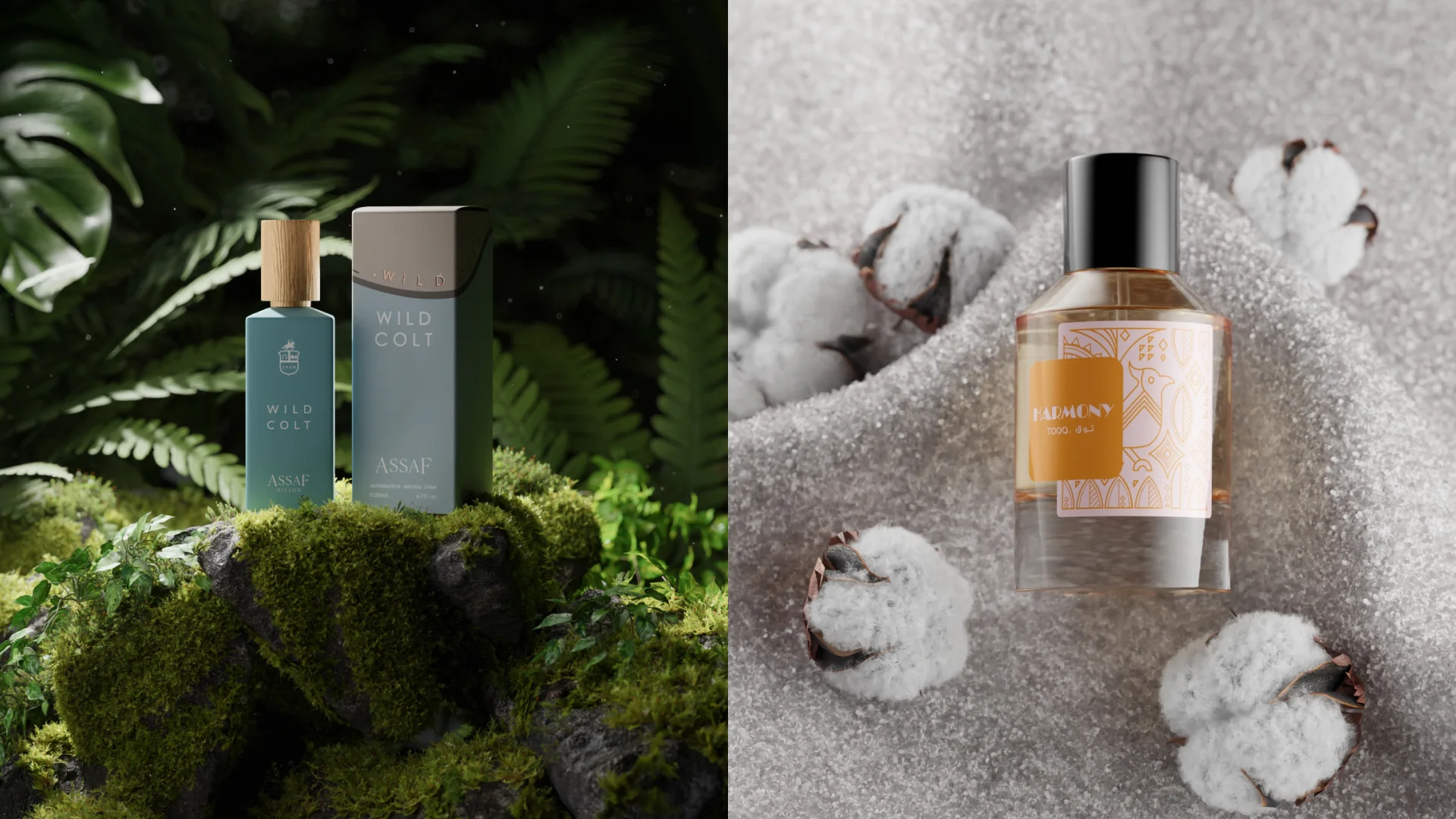
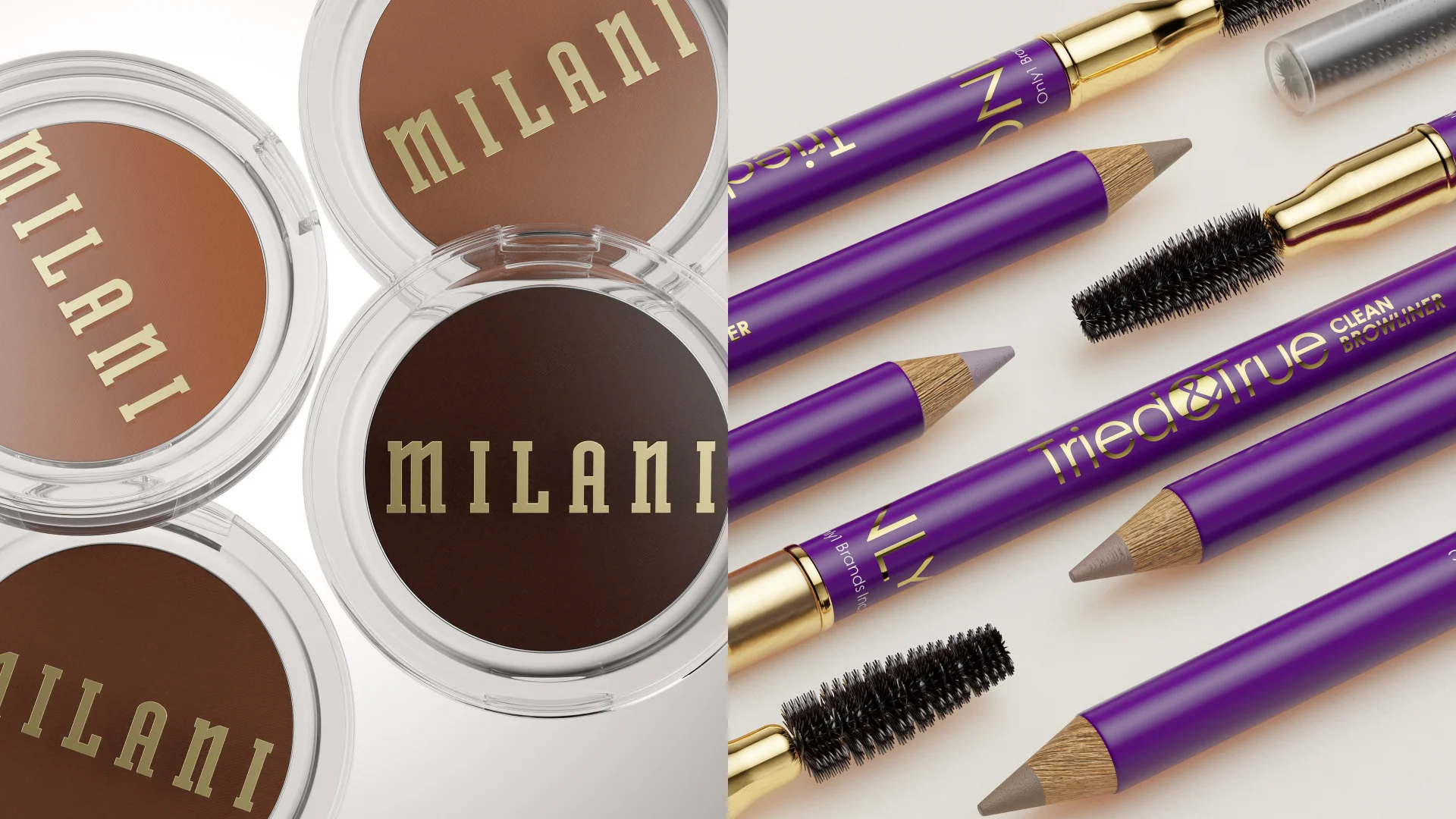
Now here’s where it gets exciting. Computer-Generated Imagery (CGI) doesn’t play by the old resolution rules. With CGI, you’re not stuck with a photo you took last week. You’re building visuals pixel by pixel, with total control over lighting, angles, and — yes — resolution.
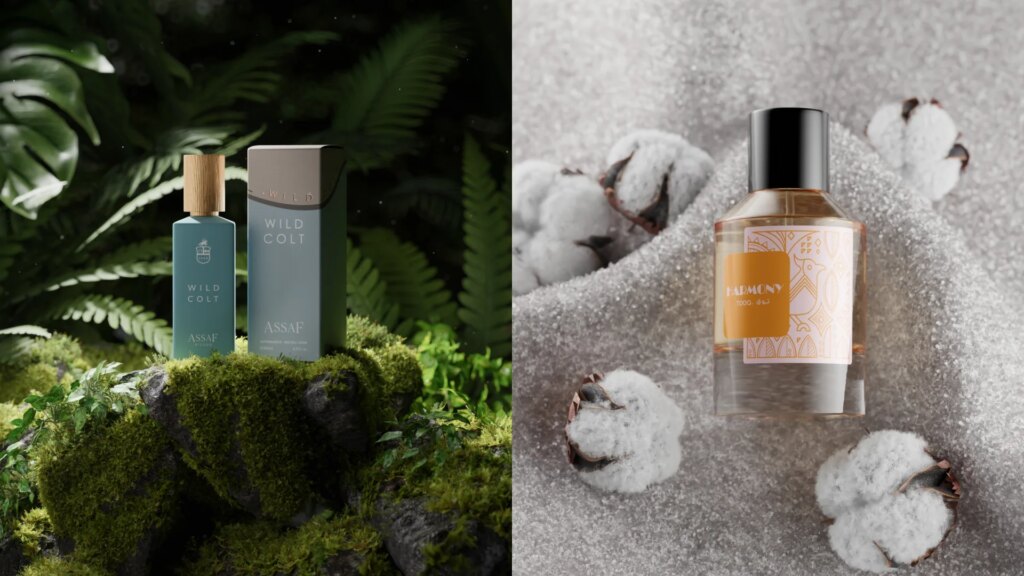
CGI images can be rendered in any resolution
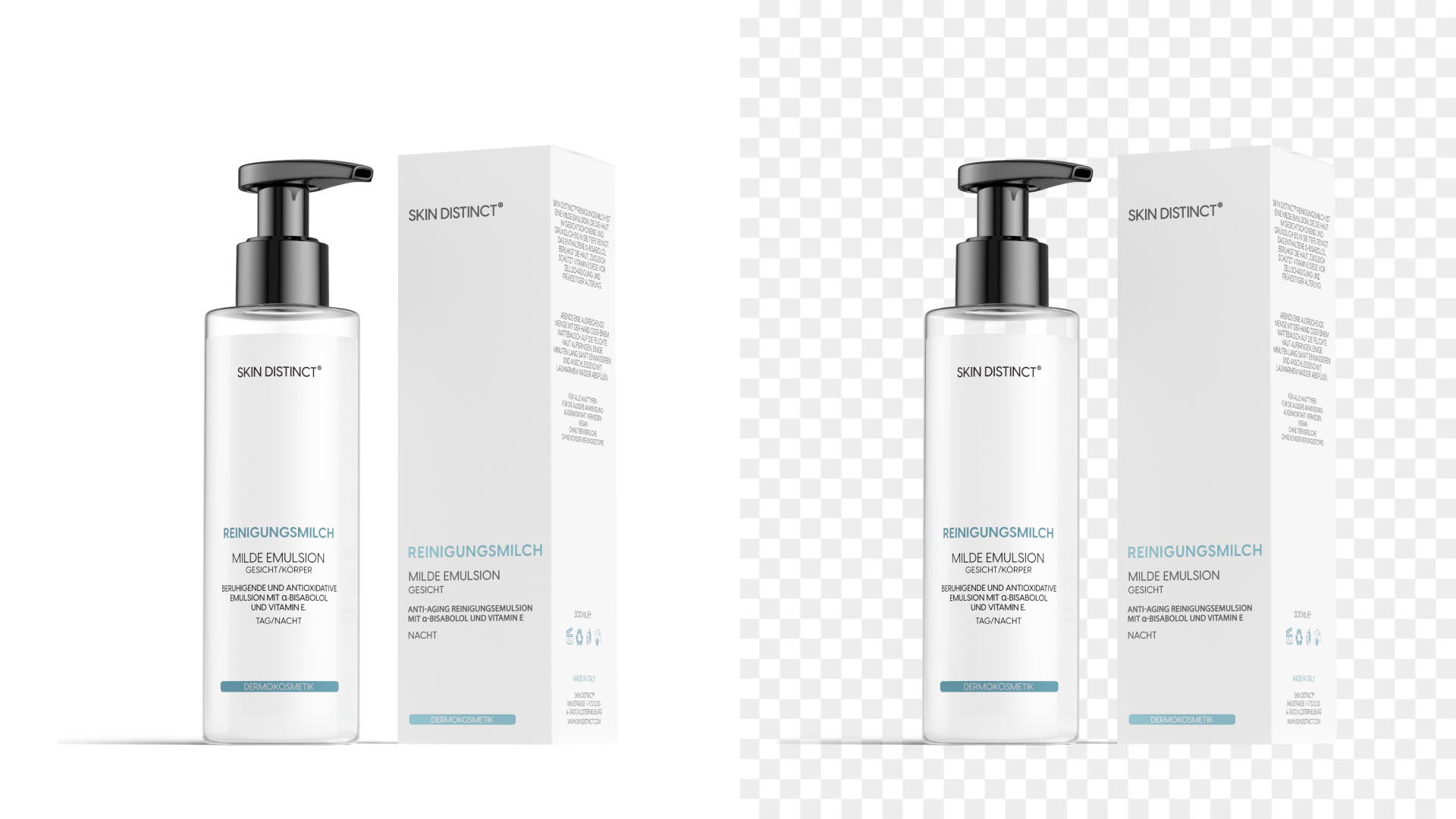
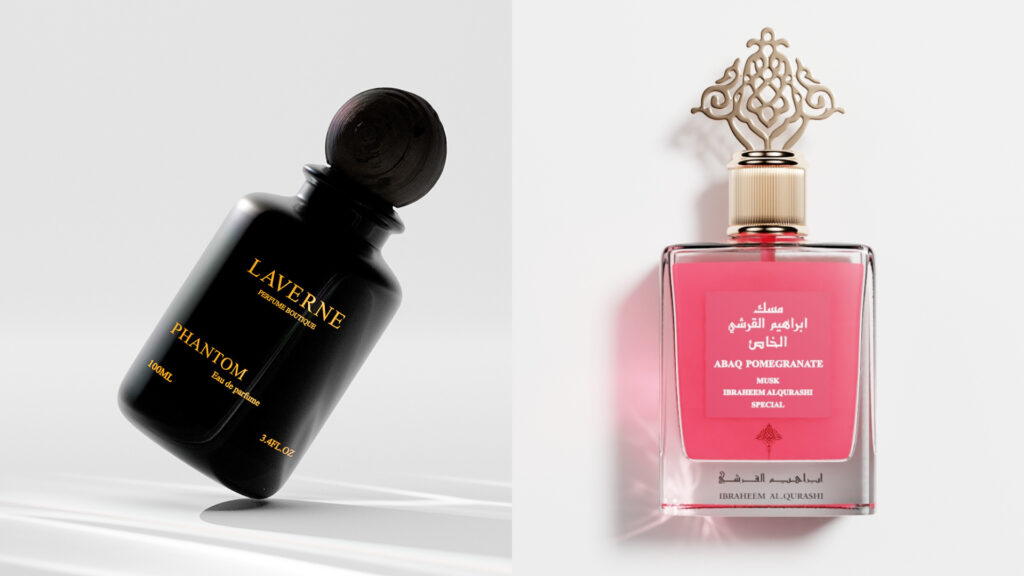
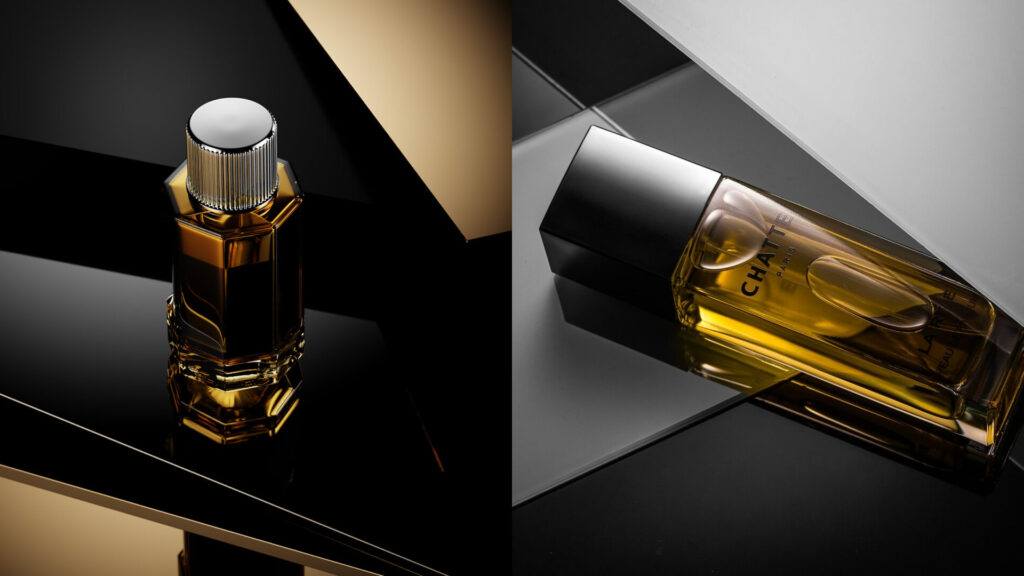
Unlike traditional photography, where you’re limited by the camera’s megapixels, CGI allows you to choose your resolution before you even create the image. Want a 10,000-pixel wide render for a billboard outside your new flagship store? No problem. Need a lightweight 800×800 version for your Shopify product grid? Just export a copy from the same master file.
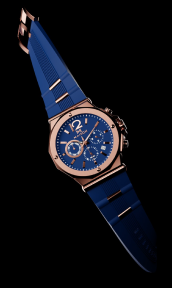
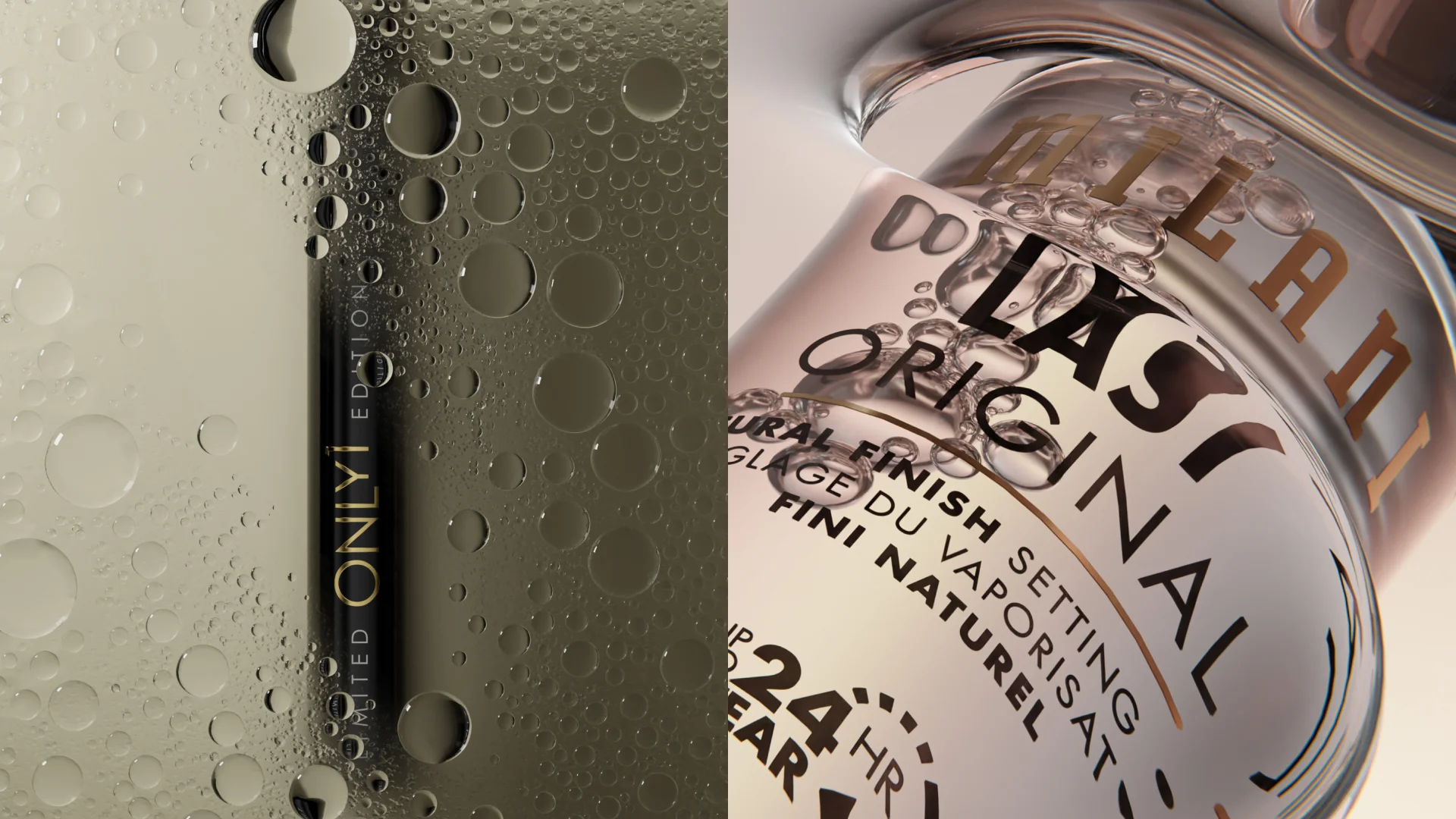
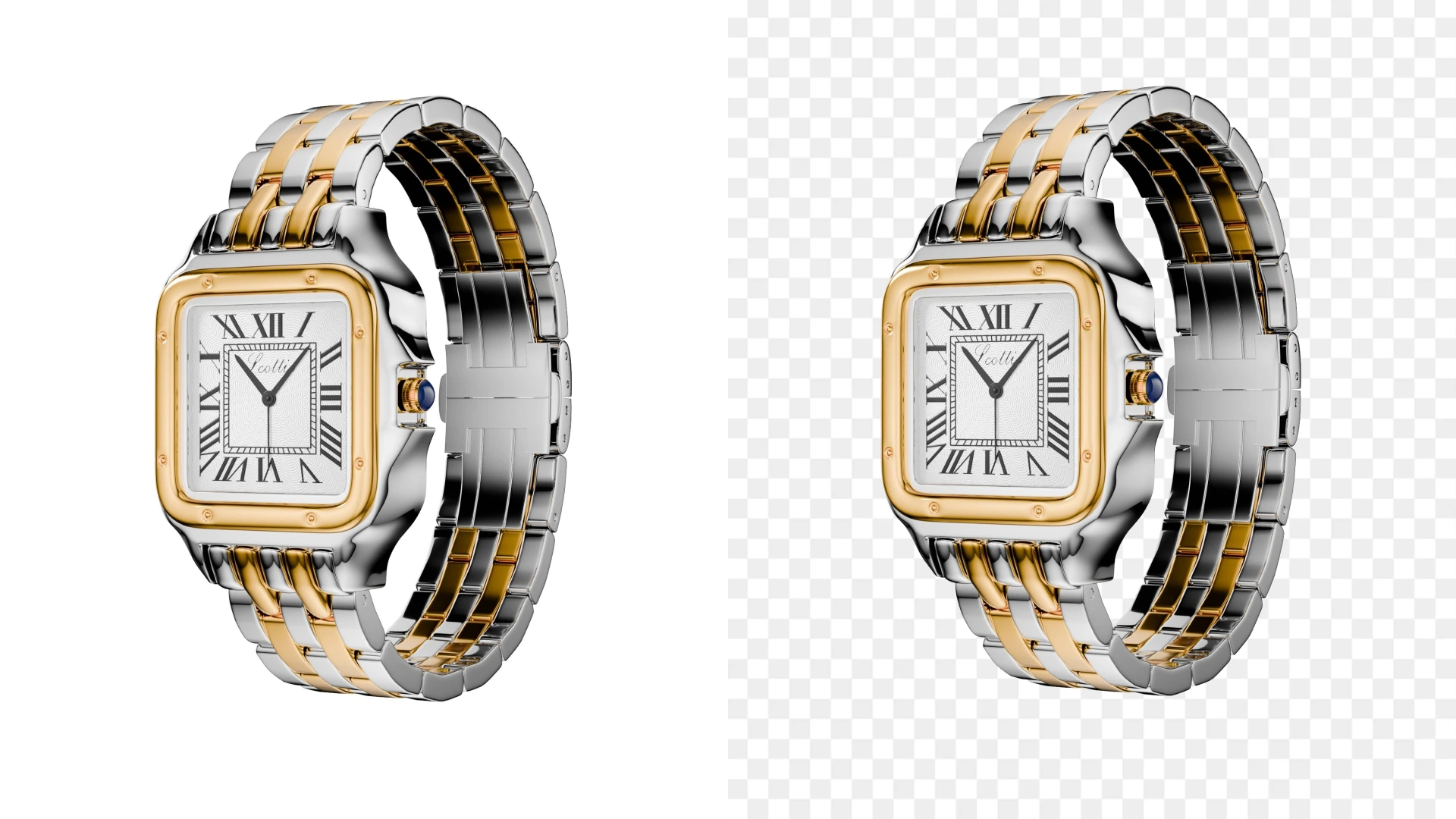
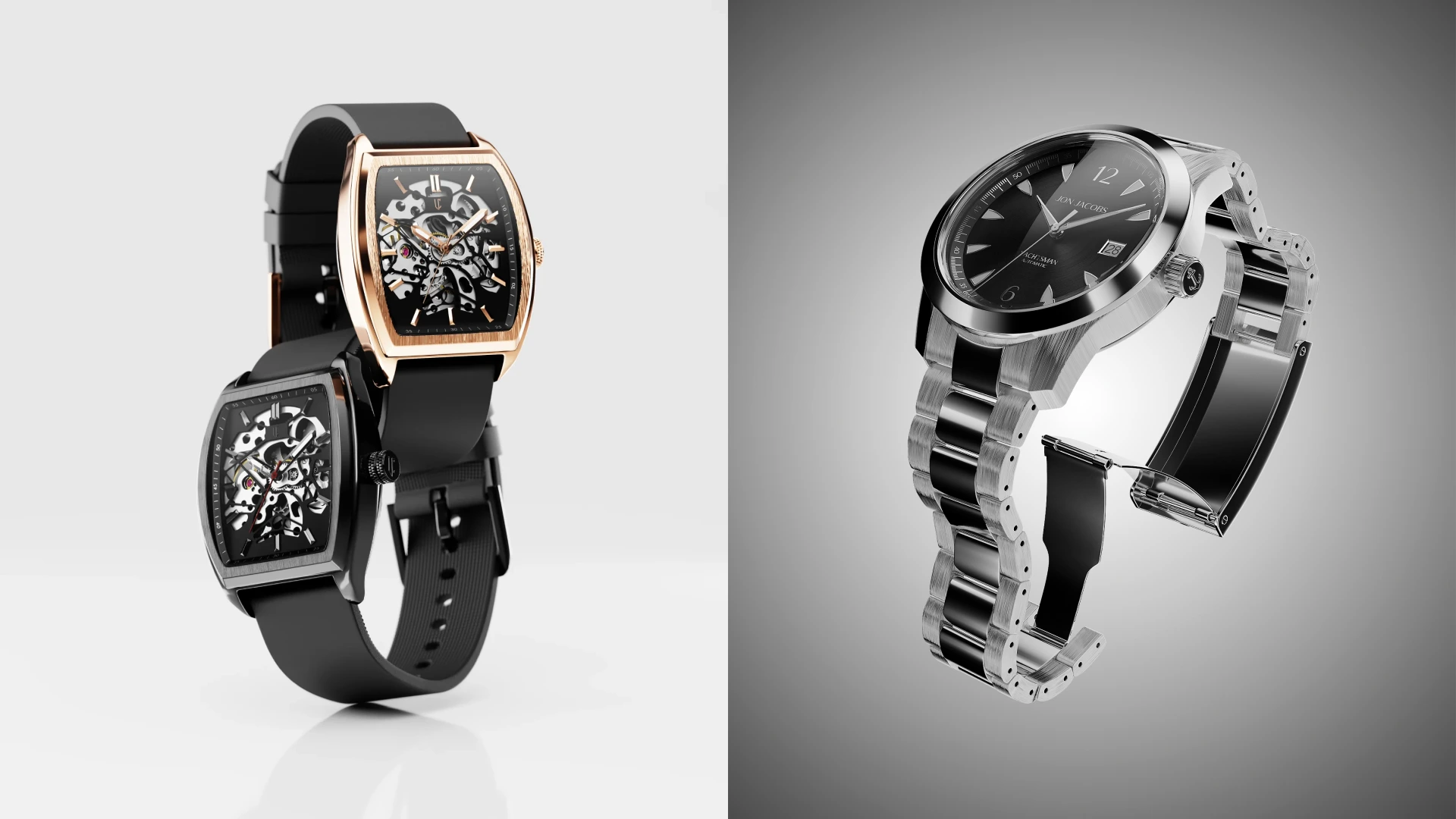
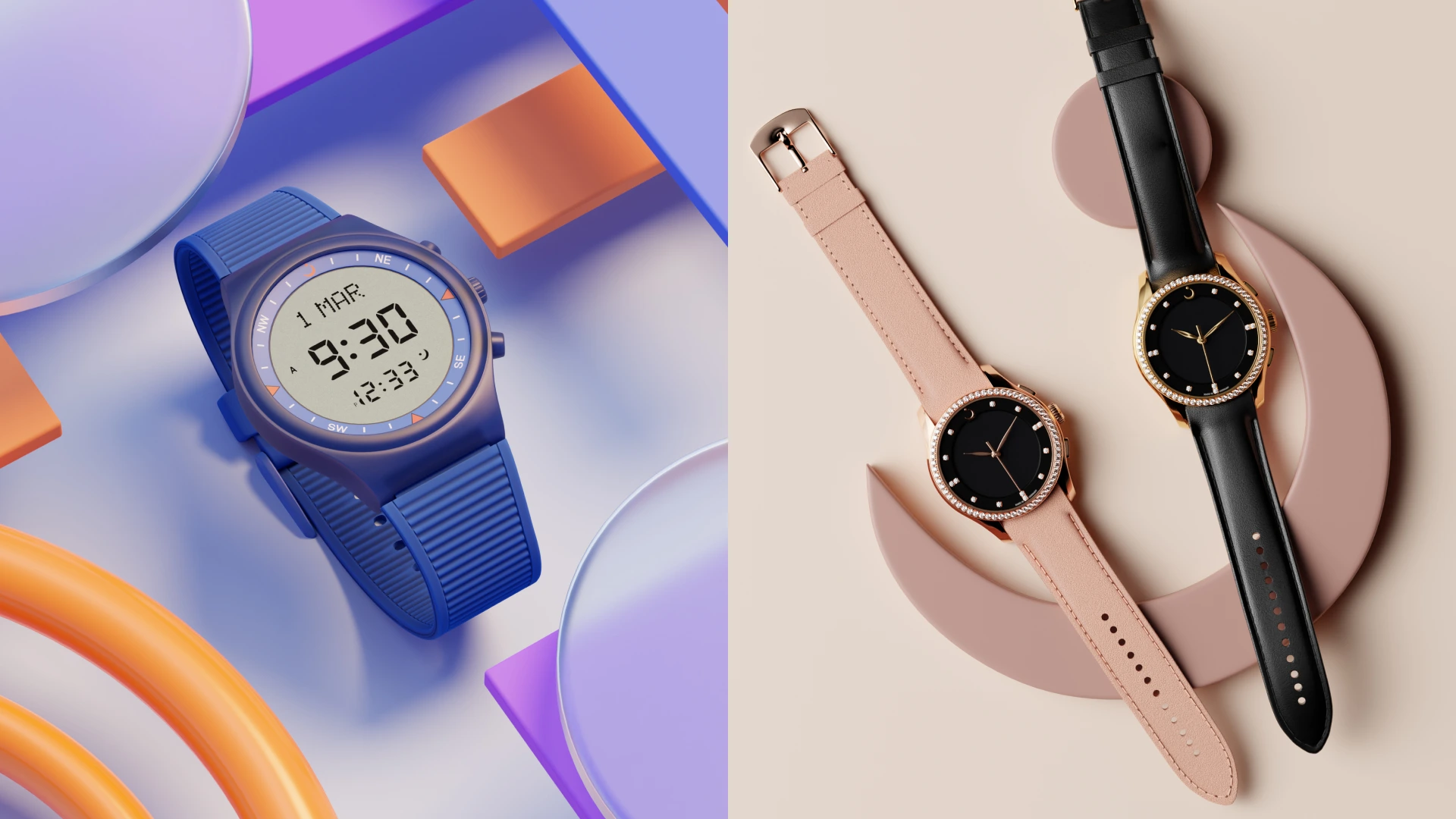
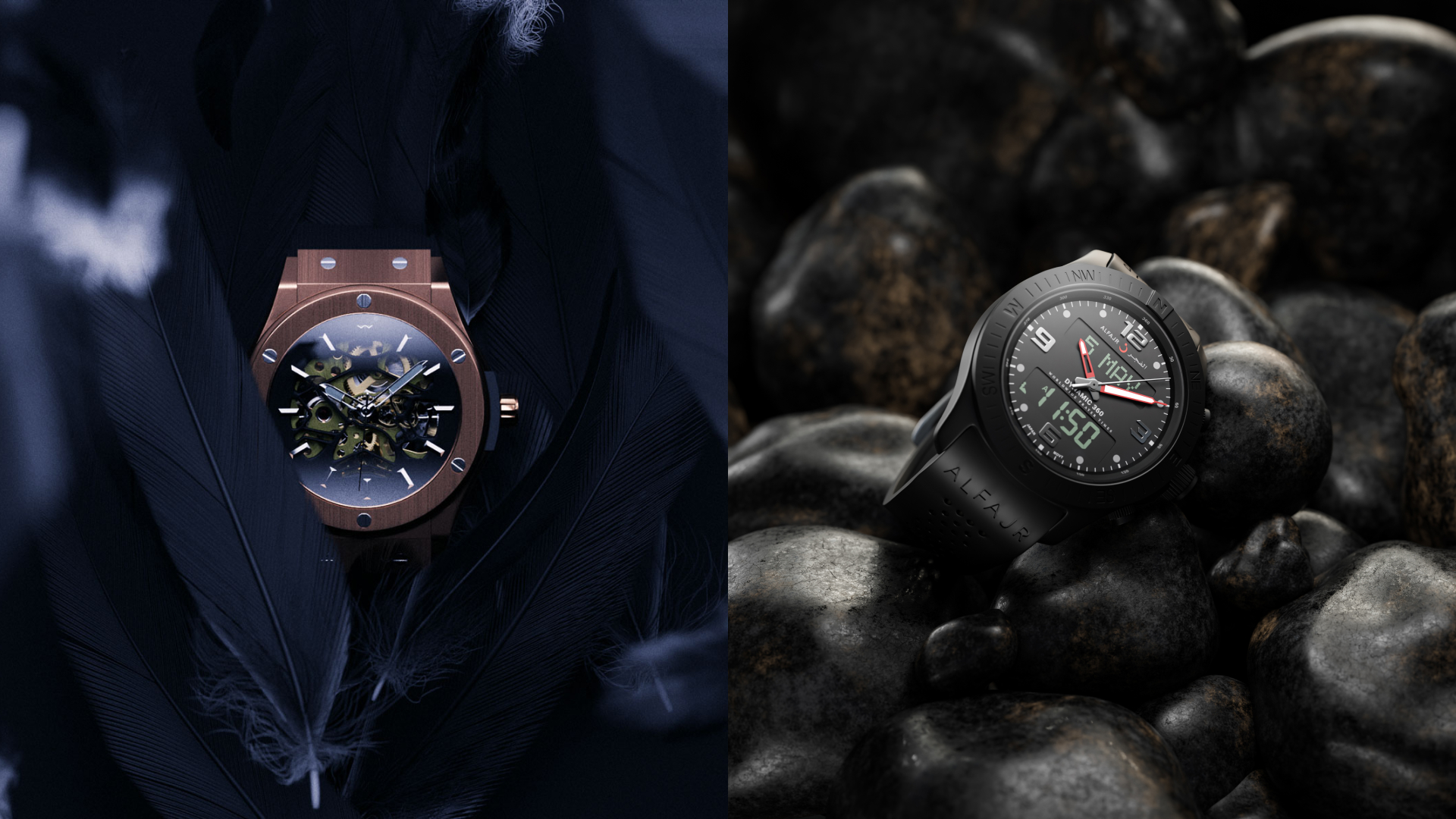
This is a game-changer for e-commerce businesses with multichannel needs. Let’s say you’re launching a new luxury watch. You’ll want a stunning hero image for your homepage, a crisp thumbnail for mobile, a lifestyle image for social media, and a print-ready version for a glossy lookbook — and with CGI, you get all of that from a single design session. One model, infinite uses.
No camera = no compression
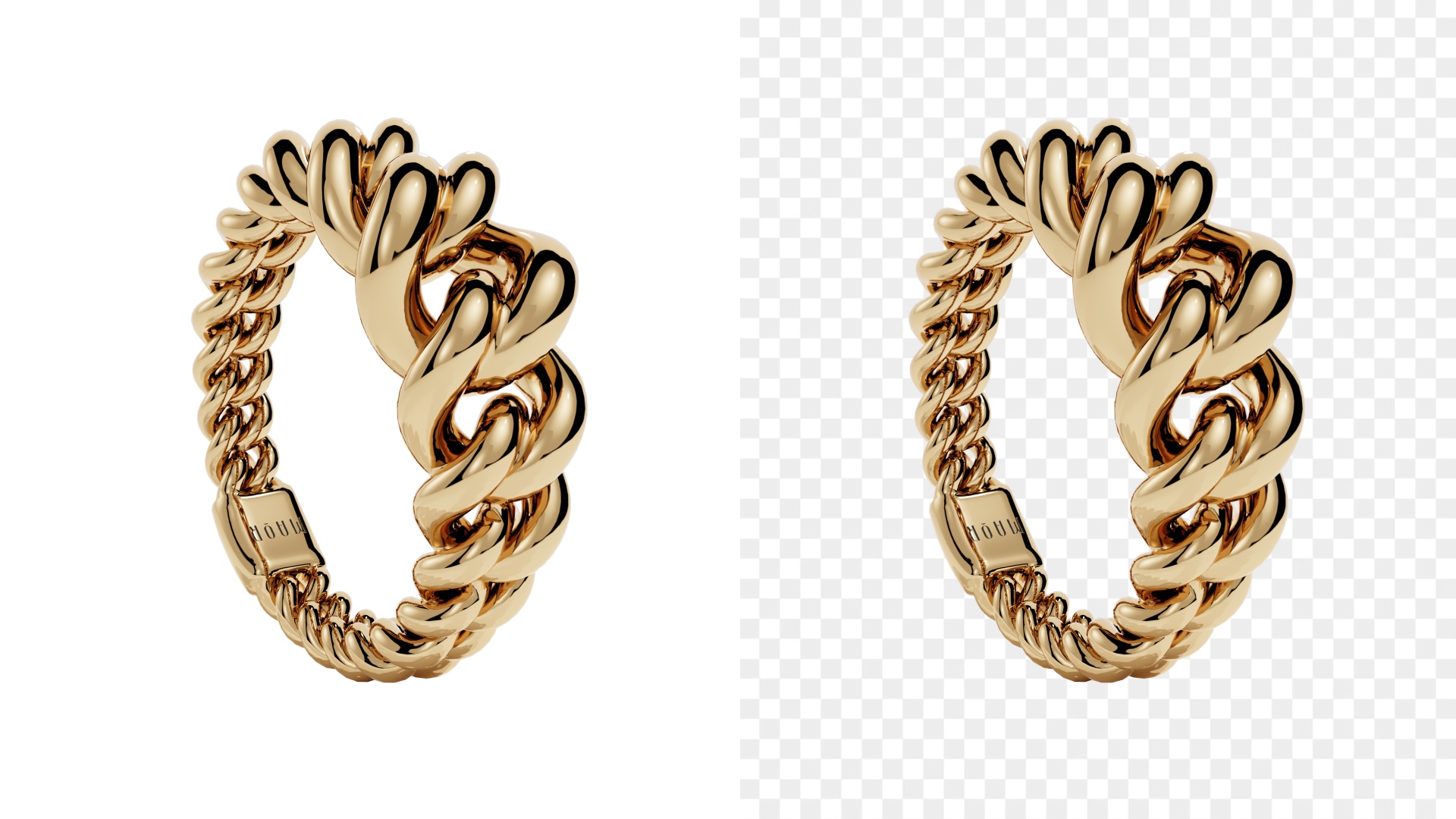
With traditional photos, every time you edit and save an image — especially as a JPEG — you lose a little sharpness and clarity. That’s called compression. And over time, it adds up. CGI skips all that. You start from a pristine 3D model, render it clean, and export in any format or size, without ever touching a shutter button or worrying about degrading quality.
This means your images stay ultra-clean even after re-editing, resizing, or recoloring. You can adjust shadows, tweak reflections, or switch materials — and the final export still looks brand-new. If you want to really show the difference between high-res and low-res images, CGI gives you pixel-perfect control that makes it easy to illustrate that leap in clarity.
It’s not just about size — it’s about flexibility
Let’s say you’re launching a lipstick line with 12 shades. With traditional photography, you’d have to shoot each color individually: front angle, side angle, swatch on skin, maybe even an open-cap version. That’s dozens of shots, models, and lighting setups.
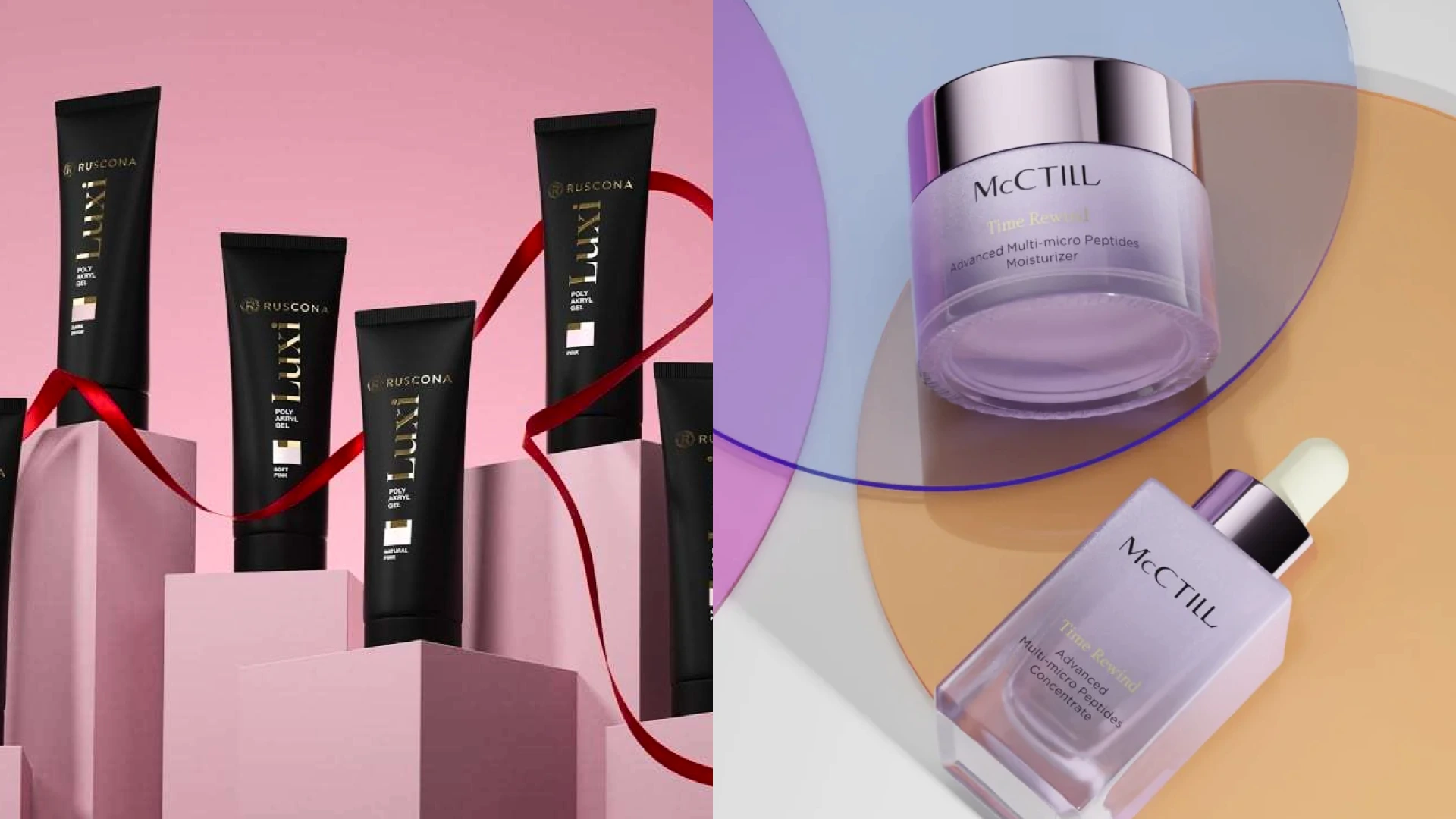
With CGI, you render one perfect model of the lipstick, then switch out the textures, colors, and even packaging with just a few clicks. Want to preview a holiday edition tube in matte gold foil? Add a background with snowflakes and glowing lights for your December sale? It’s all possible, and it’s all in your control.
Plus, resolution is just a setting. You’re not locked into what your camera captured. That same lipstick render can be turned into a print ad for Vogue, a TikTok animation, or an Amazon-ready image, without a single reshoot.
So if you’re juggling different platforms, target markets, or product versions, CGI is a really smart asset. It gives you high-res and low-res outputs from one source, keeps your branding consistent, and scales with your business. No more compromise between image quality and performance.
Choosing the right resolution for the job

This is where most folks trip up — using high-res when they don’t need it, or worse, low-res when it’s mission-critical. Picking the wrong image size can tank your print quality, slow your site down, or even lose you a sale. But once you understand how resolution fits into different contexts, you can make smarter, faster decisions.
Let’s break it down with real-world scenarios that’ll help you pick the right tool for the right job.
Use high-res for print materials
If you’re designing brochures, business cards, banners, or product packaging, high-res is a must. Print exposes every detail. If your resolution’s too low, you’ll end up with pixelation, blurry logos, and a not-so-professional look that reflects poorly on your brand.
Aim for 300 DPI at the actual print size. That means if you’re printing an 8×10-inch image, you’ll need it to be at least 2400×3000 pixels.
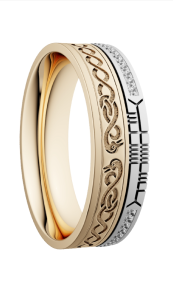
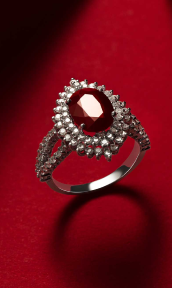
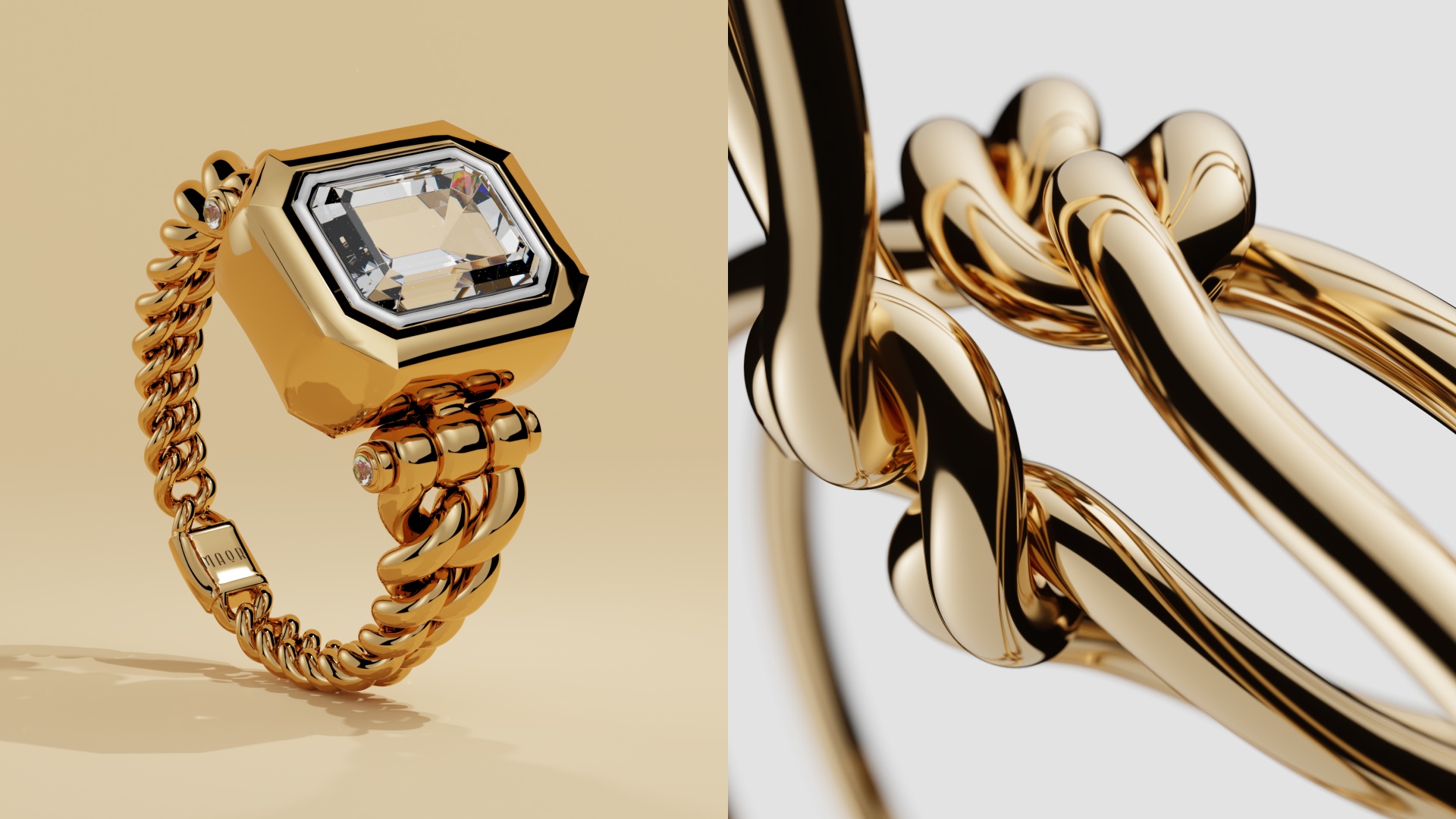
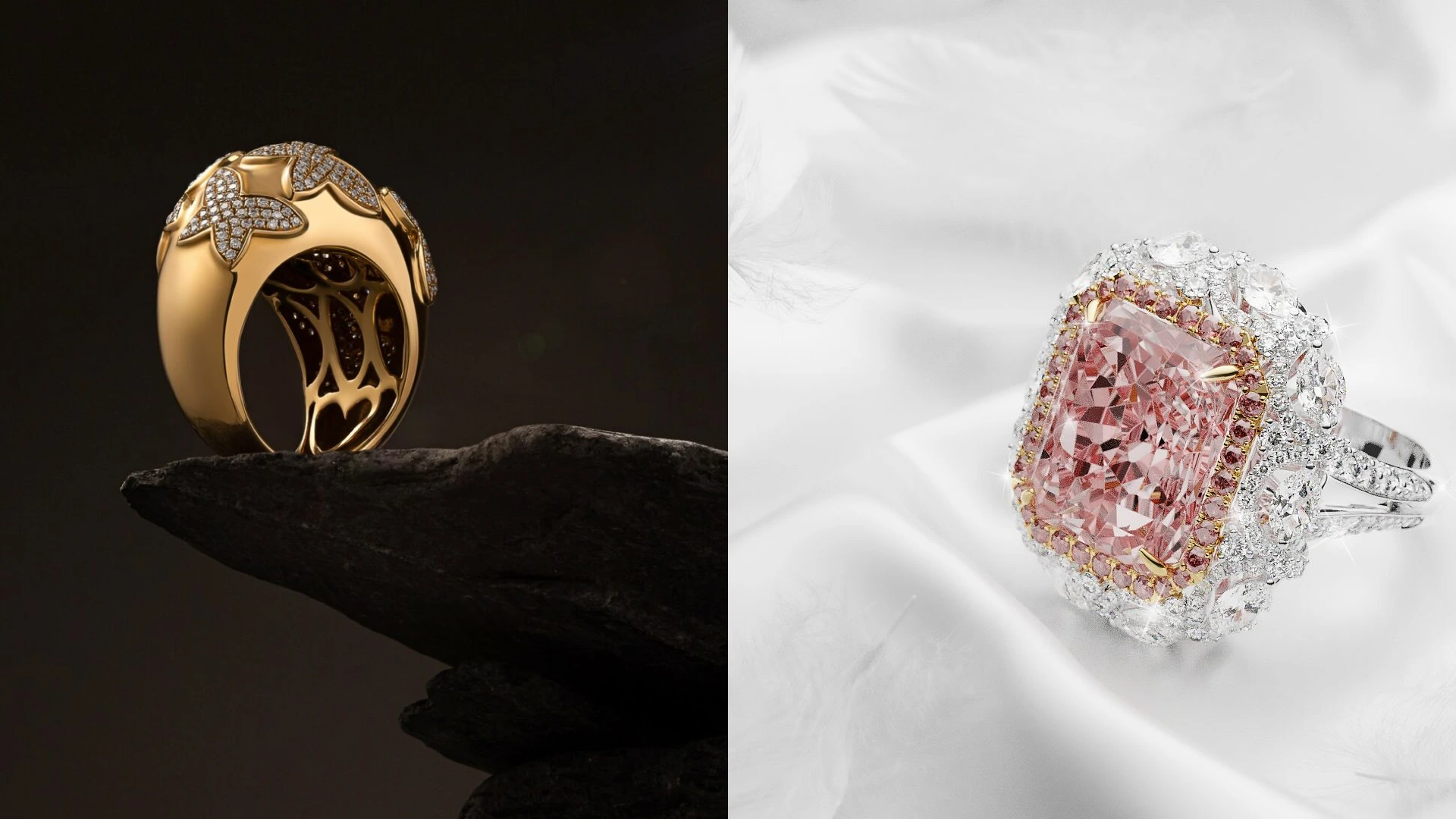
Let’s say you’re a jewelry brand printing a holiday gift guide. Your necklace needs to shine… quite literally. A high-resolution image will capture every shimmer of gold and sparkle of gemstone, making it look premium and gift-worthy. Print quality helps customers feel the value before they even touch the product.
Use optimized low-res for web and mobile
Now flip the switch: when it comes to digital platforms, speed matters. High-res images on your site can drag down load times, increase bounce rates, and hurt your SEO. That’s where optimized low-res images come in — smaller files that still look clean, especially on mobile screens.
The sweet spot? Around 72 DPI, and pixel dimensions that match the display size, not more. For most product pages, an image around 1200x1600px is more than enough. Use tools like TinyPNG or Squoosh to compress without compromising quality.
Let’s say you run a skincare shop. Your product page features a bottle of serum, with close-up shots of texture and ingredients. Uploading a 5000px wide photo from your DSLR won’t improve how it looks on a phone, but it will slow the page to a crawl. That’s a conversion killer. Resize, compress, and go lean without looking cheap.
Use different versions for different platforms
Different platforms have different image needs. Your Instagram grid, email header, online catalog, and Amazon product listing each require their own dimensions, and reusing one image everywhere just doesn’t cut it.
The smart move? Create multiple versions of the same image, tailored to the platform. For example:
- Instagram prefers square (1080×1080)
- Website banners need to be wide (1920×600)
- Email graphics should be under 800px wide and under 200KB
- Etsy thumbnails are best at 2000×2000, but compressed
Let’s say you’re launching a new sneaker line. You need a sleek hero image for your landing page, a lifestyle photo with a model for social, a close-up for product detail pages, and a tiny cropped version for Google Shopping ads. With one high-res master image, you can create all of these. And if you’re using CGI? Even easier — just render the exact crop and angle you need.
This practice is especially useful for scaling brands with growing product lines. Instead of reshooting, resizing, and editing every new photo manually, you simply build a consistent set of export presets and stick to them.
Conclusion: It’s not about chasing the highest number — it’s about choosing the right format, at the right resolution, for the right use. That’s how pros keep their visuals clean and their conversions climbing.
Why we recommend CGI for high-resolution product photography

Traditional photography has its place, but when it comes to high-resolution product imagery that works across print, digital, and even AR, CGI steals the show.
CGI delivers consistent high-res results every time.
No bad lighting. No lens blur. No color mismatch. Whether you’re building a product catalog or designing a giant window decal, CGI lets you render each image at the exact resolution you need, without ever losing sharpness.
And the best part? You can render once and scale up forever. Need the same product for a 4K display and a 20-foot banner? You got it.
It’s faster, cheaper, and more scalable.
Shooting every product in multiple formats is a logistical (and financial) nightmare. With CGI, you build a digital model once and reuse it endlessly. This saves on shipping, setup, studio rentals, and post-production. Plus, you can hire global experts remotely and collaborate in real time.
Want to update your seasonal packaging? No reshoot needed. Just update the model. Done in a day.
CGI supports SEO and site speed
When you optimize images for SEO, you’re not just thinking about alt text — you’re thinking about file size and load speed. CGI allows you to render lightweight yet crisp images for mobile-first designs while maintaining print-ready backups.
That balance (sharp visuals + fast performance) is the holy grail of image quality and SEO ranking.
Bottom line: if you’re serious about scaling your product photography without breaking your budget or sacrificing quality, CGI is where it’s at. And at Welpix, we specialize in making your products look phenomenal at any resolution, everywhere they appear.
Wrapping up
So… is your image big enough?
If you’re printing it, probably not. If you’re uploading it to your site raw from your DSLR, or you are DSLR user, probably too big.
Think of resolution as a strategy more than a number. Knowing the difference between high-res and low-res images helps you create visuals that work smarter across print and screen. With the right resolution, your product pops, your pages load faster, and your brand looks polished.
And if you want high-res without the high hassle, CGI’s got you covered — flexible, scalable, and crisp as can be.
FAQ
What’s the best resolution for printing flyers or posters?
Always go with at least 300 DPI and make sure the image’s pixel dimensions match your desired print size. For an 8×10 poster, that’s 2400×3000 pixels minimum.
Can I use high-res images on my website?
You can, but you probably shouldn’t. Large image files slow down your site, hurt your SEO, and frustrate users. Resize and compress for web — aim for under 200KB per image when possible.
How do I know if my image is high-res?
Check the DPI (should be 300 for print), and the total pixel dimensions. A 400×600 image is not high-res, no matter the DPI. You need both size and density.
What’s the ideal image size for SEO?
Images should be no larger than needed, under 200KB if possible, and named clearly (like “gold-necklace-product-front.jpg”). Add alt text, use the right format (JPEG, WebP), and compress wisely.
Why does CGI make image resolution easier to manage?
Because you’re not dealing with camera limitations or retakes. CGI gives you the power to generate images in any resolution, whenever you need them — no reshoots, no re-exports, just clean, customizable visuals.